Vous lisez ceci sur votre téléphone ?
Les extensions de navigateur ne fonctionnent pas sur téléphone. Sur iPhone, iPad et Android, les sous-titres doubles sur YouTube fonctionnent dans l'application gratuite Linglass.
Vous ouvrez une vidéo YouTube, vous tendez la main vers le bouton des sous-titres — et il est grisé, ou le menu des paramètres affiche « Les sous-titres ne sont pas disponibles pour cette vidéo ». Pas de sous-titres, pas de sous-titres automatiques, rien à traduire. Si vous regardez dans une langue que vous êtes encore en train d'apprendre, la vidéo devient soudain hors de portée.
Les conseils que vous trouverez ailleurs se résument à « demandez au créateur d'ajouter des sous-titres » ou « vérifiez vos paramètres de sous-titres » — et aucun des deux n'aide quand les sous-titres n'existent tout simplement pas. Mais il existe désormais une vraie solution : en tant que spectateur, vous pouvez faire générer des sous-titres pour n'importe quelle vidéo YouTube, directement sur la page, sans rien télécharger ni remettre en ligne. C'est l'objet de ce guide.
Obtenez des sous-titres sur n'importe quelle vidéo YouTube — gratuit →
Pourquoi YouTube dit-il que les sous-titres ne sont pas disponibles ?
Cela signifie que le créateur n'a jamais mis en ligne de piste de sous-titres et que les sous-titres automatiques de YouTube n'ont pas été générés pour cette vidéo. Quand les deux manquent, le lecteur n'a rien à afficher — le bouton CC est donc désactivé et le message apparaît. Ce n'est pas un bug de votre côté, et aucun réglage chez vous ne fera revenir les sous-titres.
Les sous-titres automatiques peuvent manquer pour plusieurs raisons :
- La langue n'est pas prise en charge par la reconnaissance vocale de YouTube. Les sous-titres automatiques existent pour un nombre limité de langues ; les vidéos dans les autres langues n'obtiennent rien.
- L'audio est difficile à transcrire. De la musique par-dessus la voix, plusieurs personnes qui parlent en même temps, du bruit de fond ou de longs passages sans parole peuvent pousser YouTube à renoncer complètement au sous-titrage.
- La vidéo est toute récente. Les sous-titres automatiques mettent un moment à être traités après la mise en ligne — mais si la vidéo date de plusieurs mois et n'en a toujours pas, ils ne viendront plus.
- Le créateur a désactivé les sous-titres. Les propriétaires de chaîne peuvent désactiver les sous-titres automatiques sur leurs vidéos.
Quelle que soit la raison, le résultat est le même : la vidéo n'a pas de piste de sous-titres, et rien dans le lecteur de YouTube lui-même ne peut en créer une pour vous.
Comment obtenir des sous-titres sur une vidéo qui n'en a pas
En tant que spectateur, vous avez quatre options réalistes. Trois d'entre elles existent surtout pour être écartées.
Demander au créateur d'ajouter des sous-titres
La réponse officielle, et la moins pratique. La plupart des créateurs ne voient jamais la demande, et même les mieux intentionnés reviennent rarement sous-titrer leurs anciennes vidéos. Si vous avez besoin de la vidéo aujourd'hui, ce n'est pas un plan.
Utiliser les sous-titres instantanés du navigateur
Chrome et Edge peuvent générer des sous-titres en direct pour tout audio joué dans l'onglet. Ça fonctionne vraiment — mais c'est conçu pour l'accessibilité, pas pour l'apprentissage. Les sous-titres apparaissent dans une boîte flottante avec un décalage, l'anglais marche le mieux avec seulement une courte liste d'autres langues prises en charge, il n'y a pas de traduction vers votre langue, et rien n'est conservé : mettez en pause ou revenez en arrière et le texte disparaît. Comme aide d'accessibilité rapide, ça passe ; comme moyen d'étudier réellement une vidéo, non.
Télécharger la vidéo et la passer dans un générateur de sous-titres
Les outils pour créateurs comme Kapwing ou Clipchamp transcrivent une vidéo que vous leur envoyez. Pour la vidéo YouTube de quelqu'un d'autre, cela veut dire la télécharger d'abord — une zone grise au regard des conditions d'utilisation de YouTube — puis attendre l'envoi, le traitement, et regarder le résultat dans un éditeur au lieu de YouTube. Ça fonctionne, techniquement. C'est aussi quinze minutes de friction pour chaque vidéo.
Utiliser une extension qui génère les sous-titres sur place
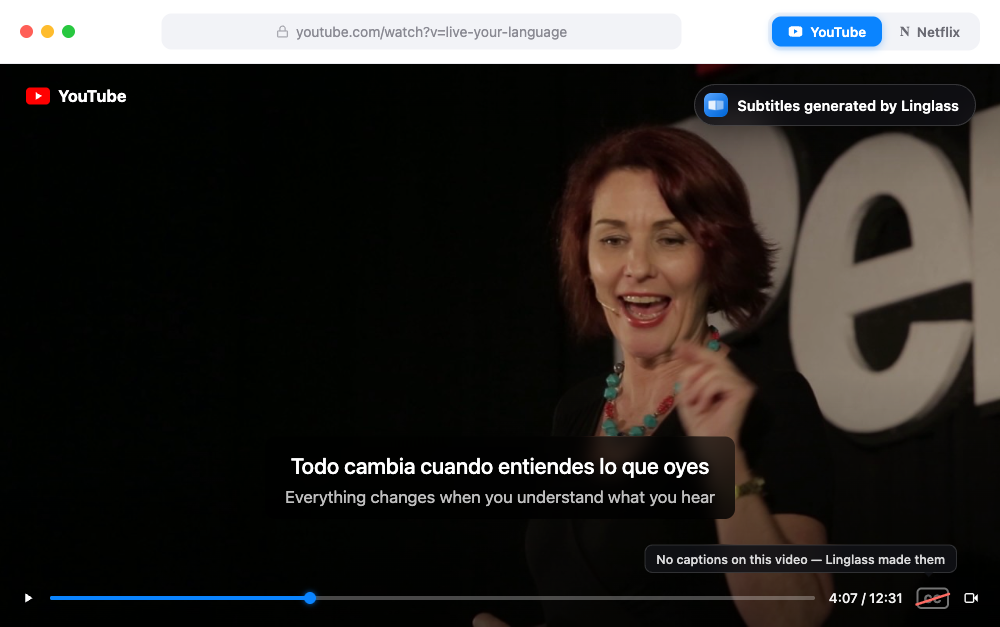
C'est l'option que les autres guides ratent, parce que jusqu'à récemment elle n'existait pas. Linglass est une extension de navigateur gratuite qui transcrit pour vous les vidéos YouTube sans sous-titres : ouvrez la vidéo, et elle génère des sous-titres propres et lisibles directement dans le lecteur — plus une ligne de traduction en dessous, pour de vrais sous-titres doubles même sur une vidéo qui n'avait rien du tout.
Comment Linglass ajoute des sous-titres à une vidéo qui n'en a pas
- Installez Linglass depuis le Chrome Web Store (Chrome, Edge, Brave, Opera et les autres navigateurs Chromium) et créez un compte gratuit.
- Choisissez vos deux langues une fois pour toutes : celle que vous apprenez et votre langue maternelle.
- Ouvrez la vidéo. Si elle n'a pas de sous-titres, Linglass commence à la transcrire automatiquement — vous voyez l'avancement directement dans le lecteur.
Quelques attentes honnêtes :
- La première fois prend quelques minutes. La reconnaissance vocale traite tout l'audio, donc une vidéo jamais transcrite demande un instant. Une fois que c'est fait, les sous-titres sont prêts instantanément pour quiconque ouvre cette vidéo ensuite.
- C'est inclus dans l'offre gratuite, avec un quota mensuel de vidéos sans sous-titres — assez pour couvrir la vidéo occasionnelle qui n'a rien. L'offre premium relève la limite.
- Vous obtenez tout l'attirail d'apprentissage, pas du texte nu. Les sous-titres générés se comportent comme n'importe quelle piste dans Linglass : ligne originale en haut, traduction en dessous, cliquez sur un mot pour le traduire en contexte, écoutez sa prononciation et enregistrez-le comme carte mémoire.
Le bouton CC fonctionne, mais les sous-titres sont approximatifs ?
C'est l'autre cas fréquent, et c'est un problème différent. Si le bouton est là mais que vous n'obtenez qu'un mur de mots en minuscules sans ponctuation, la vidéo a des sous-titres automatiques — YouTube les a créés, et ils arrivent en flux quasi continu avec des retours à la ligne maladroits. Linglass les re-segmente automatiquement en lignes lisibles et ajoute la traduction en dessous.
Et si votre vrai objectif est d'avoir deux langues à l'écran en même temps — l'original plus la vôtre — c'est l'autre fonction manquante de YouTube, traitée dans notre guide des sous-titres doubles sur YouTube.
Est-ce que ça marche dans l'application mobile YouTube ?
Les extensions de navigateur ne fonctionnent que dans les navigateurs de bureau : impossible donc de générer des sous-titres dans l'application YouTube sur téléphone ou tablette. Sur iPhone, iPad et Android, en revanche, l'appli Linglass lit la vidéo elle-même et transcrit une vidéo sans sous-titres exactement comme l'extension — voir sous-titres doubles sur téléphone et tablette pour ce qui marche où.
Questions fréquentes
Pourquoi YouTube dit-il « Les sous-titres ne sont pas disponibles pour cette vidéo » ?
Parce que la vidéo n'a aucune piste de sous-titres : le créateur n'en a pas mis en ligne, et le sous-titrage automatique de YouTube n'a pas traité la vidéo — généralement parce que la langue n'est pas prise en charge, que l'audio est trop bruyant ou musical, ou que le créateur a désactivé les sous-titres. Aucun réglage côté spectateur ne peut les rétablir, car il n'y a rien à afficher.
Comment obtenir des sous-titres sur une vidéo YouTube qui n'en a pas ?
Avec une extension de navigateur qui les génère. Linglass transcrit automatiquement les vidéos sans sous-titres : installez-la, créez un compte gratuit, choisissez vos langues et ouvrez la vidéo — elle produit des sous-titres lisibles dans le lecteur, avec une ligne de traduction en dessous. Les alternatives — demander au créateur, les sous-titres en direct du navigateur ou le téléchargement vers un générateur — sont plus lentes et perdent la traduction.
Existe-t-il une extension qui ajoute des sous-titres aux vidéos YouTube sans sous-titres ?
Oui. Linglass est une extension gratuite pour Chrome, Edge et les autres navigateurs Chromium qui génère des sous-titres pour les vidéos YouTube qui n'en ont pas, directement sur la page. Elle a été conçue pour ceux qui apprennent les langues : la piste générée s'accompagne de sous-titres doubles, de la traduction au clic et de cartes mémoire, pas d'un simple texte brut.
Puis-je ajouter des sous-titres à la vidéo YouTube de quelqu'un d'autre ?
Pas via YouTube lui-même — les spectateurs ne peuvent pas publier de sous-titres pour des vidéos qui ne leur appartiennent pas. Ce que vous pouvez faire, c'est générer des sous-titres pour votre propre visionnage : une extension comme Linglass transcrit la vidéo pour votre session et affiche le résultat dans le lecteur. La vidéo elle-même reste intacte ; les sous-titres sont à vous.
Les sous-titres générés par IA sont-ils assez précis pour apprendre une langue ?
Pour une parole claire, oui — la reconnaissance vocale moderne est très proche de la transcription humaine sur les podcasts, interviews et vlogs. Une musique de fond envahissante, des voix qui se chevauchent ou des dialectes marqués font baisser la qualité. Linglass segmente en plus les lignes selon les frontières naturelles des phrases, ce qui compte plus pour l'apprentissage qu'une précision parfaite : vous lisez des idées complètes, pas des fragments.
Est-ce que ça coûte quelque chose ?
Générer des sous-titres pour les vidéos qui n'en ont pas fait partie de l'offre gratuite de Linglass, avec un quota mensuel qui couvre les vidéos occasionnelles. Si vous regardez régulièrement des chaînes qui ne sous-titrent jamais leurs vidéos, l'offre premium relève la limite.
Récapitulatif express
- « Les sous-titres ne sont pas disponibles » signifie que la vidéo n'a pas de piste de sous-titres et que YouTube ne l'a pas sous-titrée automatiquement. Rien dans vos réglages ne peut y remédier.
- Demander au créateur, les sous-titres en direct et le télécharger-puis-transcrire existent techniquement — et tous échouent au test « je veux juste regarder cette vidéo maintenant, dans ma langue ».
- Linglass génère des sous-titres lisibles pour les vidéos YouTube sans sous-titres directement dans le lecteur, avec une ligne de traduction en dessous — compte gratuit, quelques minutes pour une vidéo jamais transcrite, instantané ensuite.
- Sur mobile, l'extension ne peut rien, mais l'appli Linglass transcrit une vidéo sans sous-titres sur iPhone, iPad et Android.
Avant, une piste de sous-titres manquante voulait dire passer la vidéo. Maintenant, cela veut dire attendre deux ou trois minutes.
Regardez n'importe quelle vidéo YouTube avec des sous-titres
Linglass génère des sous-titres pour les vidéos qui n'en ont pas — et affiche chaque vidéo avec des sous-titres doubles, la traduction au clic et des cartes mémoire. Gratuit.
App Store