

Reading this on your phone?
Browser extensions can't run on phones. On iPhone and iPad, dual subtitles on YouTube work in the free Linglass app.
YouTube already has subtitles in dozens of languages, and it can even auto-translate them. What it can't do is show two languages at the same time — the original on top and your own language below. That's what people mean by dual subtitles or bilingual subtitles.
If you're learning a language by watching videos in the original audio, this is exactly what you want: hear the line, read it in the original, and check the translation in a single glance. YouTube has no setting for it — and its auto-translate isn't the same thing, because it replaces the original instead of showing both.
Linglass is a free browser extension that fixes this. Install it, pick your two languages once, and every YouTube video plays with the original subtitle on top and your translation right below it — nothing else to set up.
Add dual subtitles to YouTube — free →
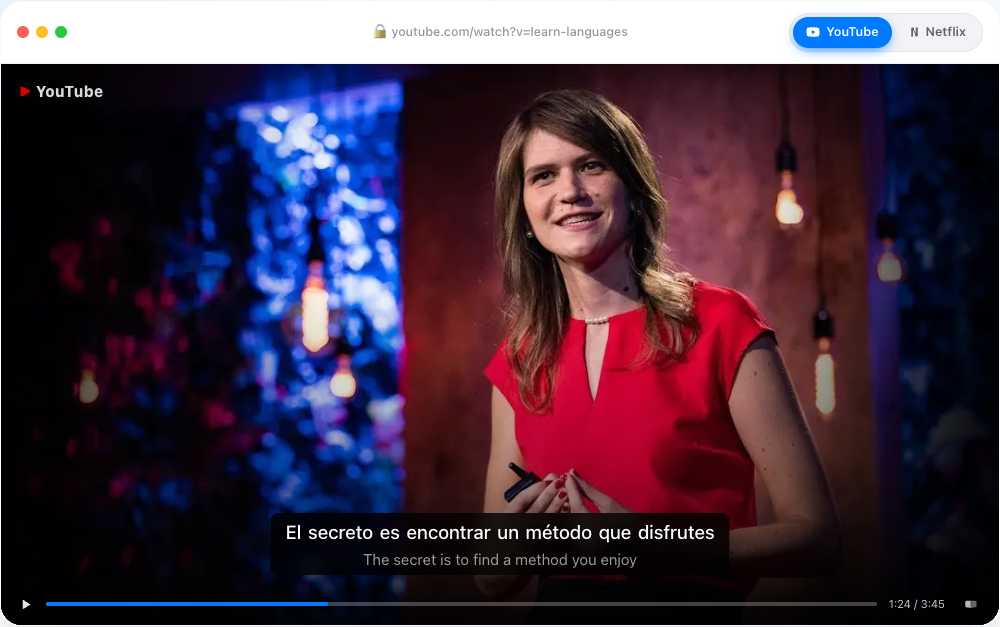
Does YouTube have dual subtitles?
No — not natively. YouTube's player renders a single subtitle track at a time. It can auto-translate that track into another language, but that swaps the original line out for a machine translation; you never see both at once. There's no setting, anywhere in YouTube, for showing two subtitle tracks together.
To watch with two languages on screen at the same time, you need a browser extension that injects the second track into the page. The extension keeps YouTube's original-language captions and adds a translation line underneath them.
YouTube's auto-translate vs. real dual subtitles
This is the part most people get stuck on, so it's worth being precise.
YouTube's built-in "Auto-translate" (under the subtitle settings gear) takes the existing caption track and runs it through machine translation. The result replaces the original line. So you get the translation — but you lose the original-language text, which is the whole reason you turned subtitles on while learning. You can't connect the sound you're hearing to the words on screen if those words have been swapped for your native language.
Real dual subtitles keep both:
- Original language on top — the line you're trying to learn, matched to the audio.
- Translation below — a safety net for the words and phrases you didn't catch.
The point isn't to read both lines at once. It's that the original is always there to be heard and read, with the translation sitting underneath only for when you're stuck. YouTube's auto-translate can't do this because the player was never built to stack two tracks — and that's exactly the gap Linglass fills.
Not the same as auto-dubbing. You may have heard that YouTube now "translates videos" — that's its AI auto-dubbing, which rolled out to creators worldwide in early 2026. It generates a translated audio soundtrack so you can listen to a video in another language. That's a separate feature: it changes the sound, not the captions, and it doesn't give you two subtitle lines. For dual subtitles you still need an extension.
What if a video has no subtitles?
Not every YouTube video comes with subtitles. Music videos, vlogs, smaller channels — plenty of them have nothing for an extension to work with, or only YouTube's rough auto-generated captions, which arrive as a near-continuous stream of words with no punctuation and awkward line breaks.
Linglass handles both cases. Rough auto-captions get re-segmented into readable lines automatically. And for videos with no captions at all, Linglass generates its own: open the video and it transcribes the audio into clean subtitles, with the translation line underneath — so even a caption-less video plays with full dual subs. The details are in our guide for videos with no subtitles.
How to set up dual subtitles on YouTube
- Install Linglass from the Chrome Web Store (works in Chrome, Edge, Brave, Opera and other Chromium browsers).
- Open the settings and pick your primary language (what you're learning) and secondary language (your native one, used as the translation).
- Open any YouTube video and play it.
Once it's set, it works on every video — no per-video setup.
Using dual subtitles without ruining the experience
The biggest mistake people make is reading both subtitle lines at once. Your eyes ping-pong between them, you stop listening to the actual audio, and you remember almost nothing the next day.
A better way:
- Listen first. The point of watching in the original is to hear it. Try to understand the line from audio alone.
- Read the original-language subtitle if you didn't catch it. This is the second pass. You're connecting the sound you just heard to the spelling.
- Glance at the translation only when you're stuck. It's a safety net, not the main event. The more you lean on it, the less it works.
If you find yourself reading only the translation, hide the secondary track for a video and see how you cope. Most people are surprised by how much they understand without it.
What bilingual subtitles can and can't do
They make immersion accessible — you can watch videos you'd otherwise have no chance of following, which means you'll watch more, which means more exposure to the language. That's the entire game with Comprehensible Input.
They don't make you fluent on their own. Watching with dual subs is Comprehensible Input: it builds your vocabulary, your ear, and your sense of how the language flows. It does not give you grammar drills, speaking practice, or active recall. For those you need other things — and that's where the words you save from videos start to matter.
This is why Linglass doesn't stop at the subtitles. Click any word to translate it in context, hear it pronounced by a native voice, and save it — it becomes a spaced-repetition flashcard automatically, complete with the original sentence, a screenshot from the video, and an audio clip. The subtitles on screen are the surface; the retention system underneath is what turns watching into actual learning.
Common problems and quick fixes
Nothing appears, or only rough captions show up. Some videos have no human-written subtitles, only YouTube's auto-generated ones — and some have nothing at all. Dual subs still work on auto-captions; Linglass re-segments them into readable lines, and for videos with no captions at all it generates its own subtitles from the audio.
The translation looks machine-made. On the original-language track, that's expected — the second line is a translation, not a localised script. Click a single word for a cleaner, contextual meaning.
Lines drift out of sync. This mostly happens on auto-caption videos, where timing is loose. Linglass re-times the second track to match the first; if a video looks off, toggling the caption track off and on usually reloads it.
It stops working after a YouTube update. YouTube changes its player periodically. Linglass patches within a few days — just update the extension.
Nothing shows up on the YouTube mobile app. Browser extensions only run in desktop browsers, so there's no way to add a second subtitle track inside YouTube's own phone or tablet app. For YouTube on iPhone and iPad the Linglass app plays the video itself and shows both lines — see dual subtitles on phone and tablet for what works on each device.
Frequently asked questions
Does YouTube have dual subtitles?
No. YouTube shows one subtitle track at a time. It can auto-translate that track, but that replaces the original line with a machine translation — you can't see both the original language and your own at once. To get true dual subtitles, you install a browser extension like Linglass that overlays a second track under the video.
What are dual subtitles (or bilingual subtitles)?
Dual subtitles — also called bilingual subtitles — means two subtitle lines on screen at the same time: the video's original language on top and a translation into your own language below. You read the original to follow the audio and glance at the translation only for the words you didn't catch. It's the standard setup for learning a language from video.
Is there a free way to get dual subtitles on YouTube?
Yes. Linglass shows dual subtitles on YouTube on its free plan — install the extension, pick your two languages, and they appear on every video. Saving words is unlimited on the free plan too; premium ($7.99/month, or $5/month billed yearly) only raises the daily translation limit for heavy users.
How do you get two subtitles at the same time on YouTube?
Install Linglass from the Chrome Web Store. Open its settings, pick your primary language (what you're learning) and your secondary language (your native one), then open any YouTube video — both subtitle tracks render together under the player automatically.
Can you show the original and translated subtitles together on YouTube?
Yes, but only through a browser extension. YouTube itself either shows the original or swaps it for a translation. An extension keeps the original-language line on screen and adds the translation below it, so you can hear the line, read it, and check the meaning in one glance.
Why does YouTube's auto-translate replace the original subtitle instead of showing both?
Because YouTube's player is built to render a single subtitle track. Auto-translate runs that one track through machine translation and shows the result instead of the original — it was designed for casual viewers who just want to follow along, not for language learners who need the original and the translation side by side.
Can I use dual subtitles on the YouTube mobile app?
Not with the extension. Browser extensions only work in desktop browsers like Chrome, Edge, Firefox, Brave and Opera, and the YouTube mobile app doesn't support them. The setup itself does work on a phone, though: the Linglass iOS app plays the video in its own player and shows both subtitle lines, with tap-to-translate and flashcards on iPhone and iPad.
Can YouTube show two subtitles at once?
Not by itself — the YouTube player renders exactly one subtitle track, and no setting changes that. A browser extension is what makes two subtitles at once possible: it keeps YouTube's original captions and draws a second, translated line under them. Linglass does this for free on any video.
Quick recap
- YouTube doesn't show dual subtitles natively, and its auto-translate replaces the original instead of showing both. You need a browser extension.
- Linglass adds the second track to any YouTube video in two clicks — original on top, translation below.
- Don't read both lines at once. Listen, then read the original, then glance at the translation only if stuck.
- The real payoff is retention: save the words you meet on screen and they come back as flashcards, so watching turns into learning.
- Already using Language Reactor and want something else? We compare seven tools in our guide to the best Language Reactor alternative options.
Two subtitle tracks on screen won't teach you a language by themselves. But they make it possible to watch what you actually want to watch in the original — and that's the whole point.
Add dual subtitles to YouTube — free →